How to print labels for received stock after Stocky
On this page
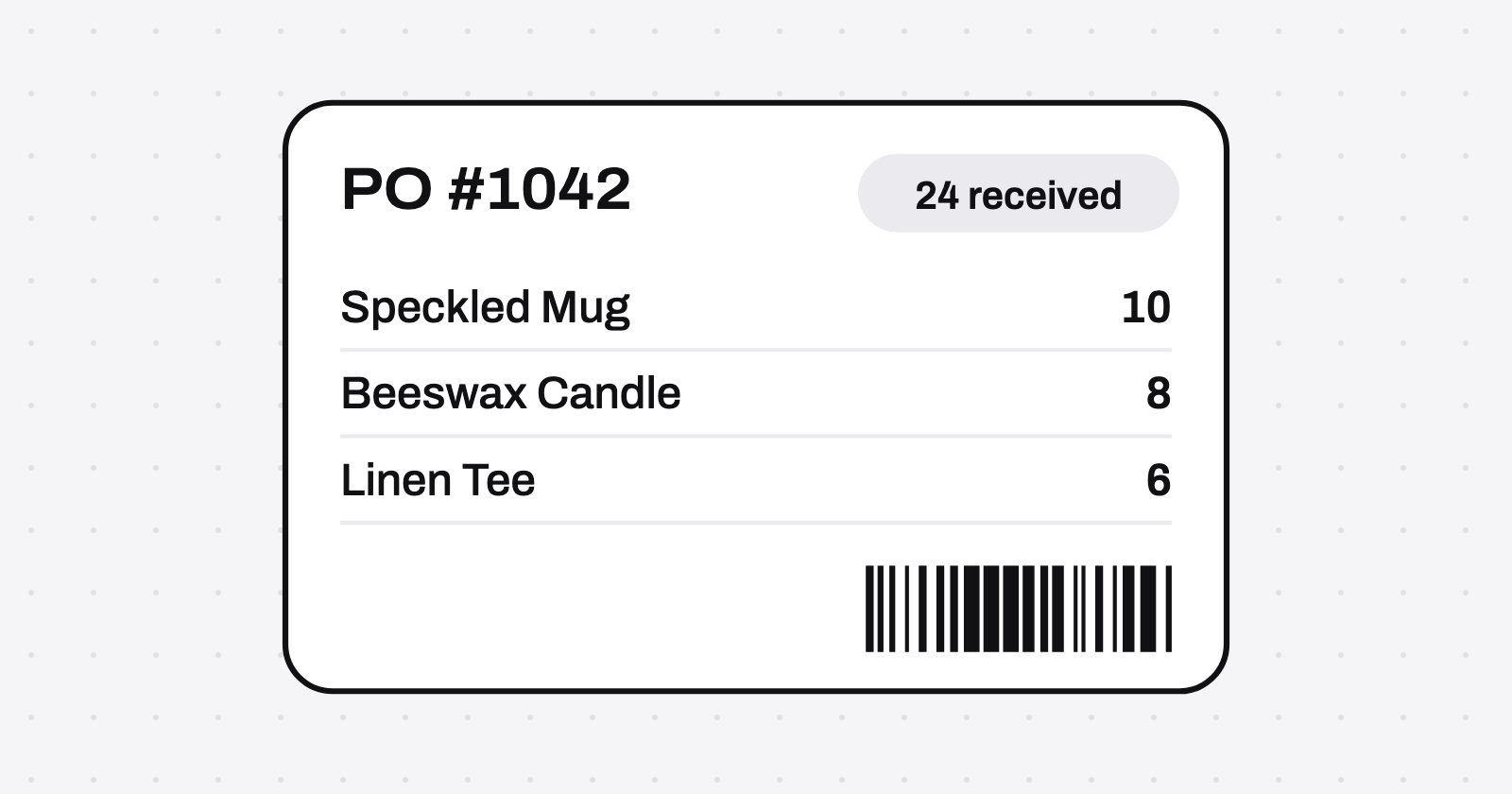
Shopify doesn't print labels from the purchase order screen. Here's how to print labels for what actually arrived, now that Stocky is gone.
- Purchase order
- Linked transfer
- Accepted count
- Printed labels
Still have records in Stocky? Export them soon. Shopify says you'll have read-only access for at least 90 days after 31 August 2026. By our count that runs to about 29 November 2026, but Shopify hasn't named an end date.
What you need
| You need | Details |
|---|---|
| The app | The Retail Barcode Labels app, and a staff role with product permissions. |
| A computer | With a supported label printer connected. Shopify says printing isn't supported in Shopify POS, and the app can't print on an iPad. |
| Labels | In a size the app supports. Shopify's list includes Dymo 30252, 30336, 30332 and 30299, Avery Standard 5160 and 5167, and several Zebra models. You can't add custom sizes. |
| Barcodes | One on each variant. |
If a variant has no barcode
- Open the app and choose Create barcodes.
- Choose Create barcodes for products without barcodes.
Don't create barcodes for products that already have ones you entered. That overwrites them.
What you should know about the barcodes the app creates:
- Format: Code-128, taken from the last 8 digits of the variant ID.
- Duplicates: Shopify says they're rare but possible.
- Google Shopping: Shopify says these barcodes aren't suitable for it.
- Third-party channels: Shopify says you need unique barcodes from GS1.
Step 1: Receive the delivery on its linked transfer
In Shopify, you receive stock on the inventory transfer linked to the purchase order, not on the purchase order itself.
- In your Shopify admin, go to Products > Transfers and click the transfer linked to your purchase order.
- Click Receive items.
- For each item, set Receive action to Accept, Reject or Cancel, and enter the quantity under Receiving. Accept all and Reject all handle a whole delivery.
- Click Save.
If something doesn't go to plan
| What happened | What to do |
|---|---|
| No linked transfer | Go to Products > Purchase orders, open the order, click Create transfer, choose a destination location and click Save. The order has to be marked as ordered first. If the button isn't there, Shopify's help pages don't explain why, so ask Shopify Support. |
| Only part of the order came | Receive what arrived. The transfer stays In progress until everything is accounted for, then changes to Transferred. |
| You entered a wrong count | On the received shipment, click the horizontal menu icon, then Manage received items, edit the quantity and save. |
Step 2: Work out how many labels you need
Count what you accepted in this delivery, not what you ordered.
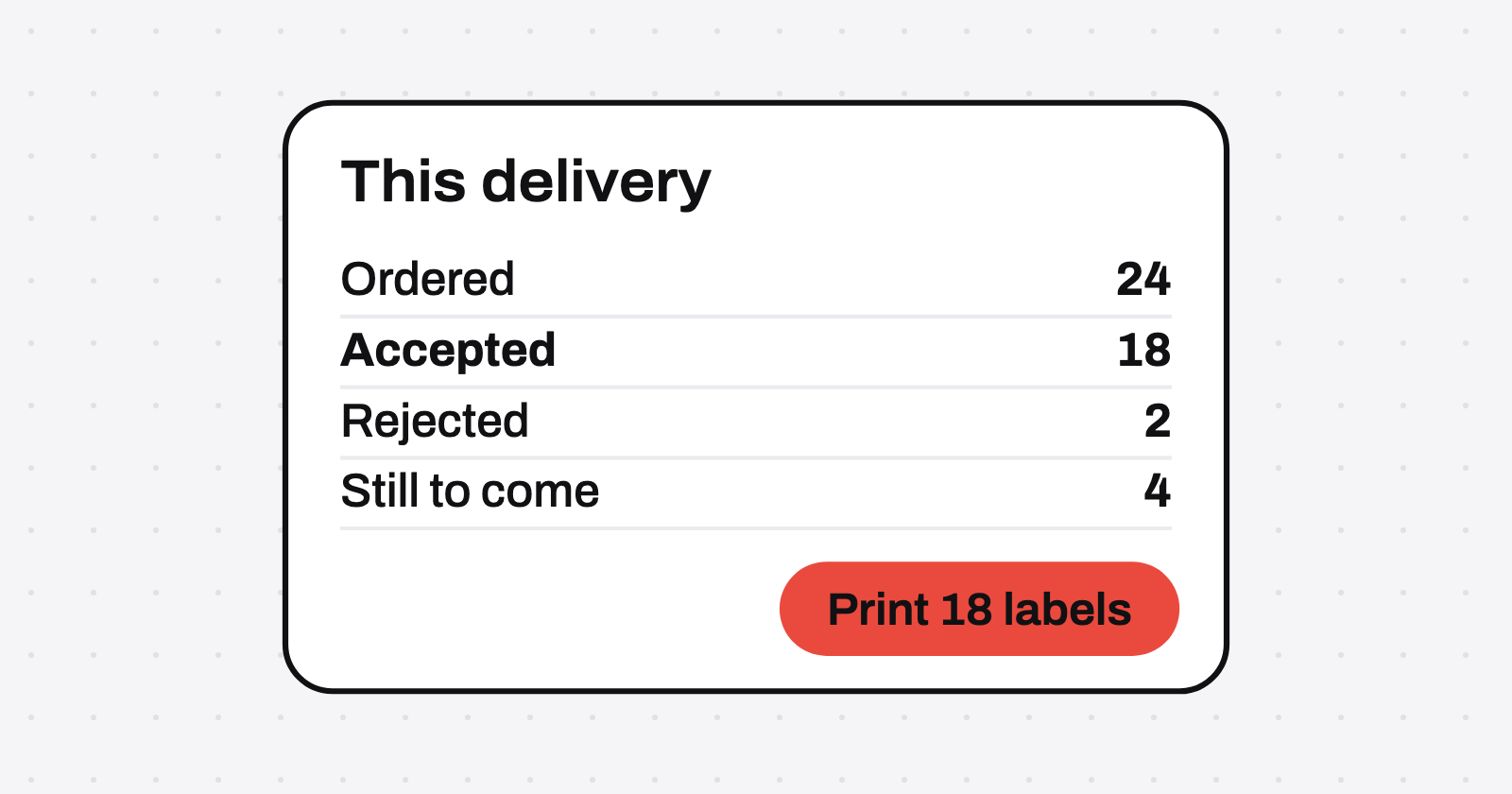
Rejected units are recorded on the transfer but don't add to your available stock, so they don't need labels.
Merchants on Shopify Community report that exporting a full purchase order gives ordered quantities. That over-prints on a partial delivery.
Small delivery
Shopify's advice is to select the received variants and enter the quantities by hand. So note your accepted counts as you receive.
Large delivery
Shopify says to export the transfer's receiving ledger to CSV. Then use a spreadsheet to drive printing, or a third-party labeling app.
Its page doesn't say where that export is or what columns it has, and we couldn't confirm either.
Another route to try: a custom report
Shopify documents this report for reconciling supplier invoices. It wasn't designed for labels, and we haven't run it.
- Go to Analytics > Reports and create a custom report using the Inventory transfers data source.
- Add the dimensions
transfer_name,inventory_origin_name,destination_name,transfer_statusandproduct_variant_sku. - Add the metrics
ordered_quantityandreceived_quantity. - Export it to CSV, then check a few rows against the transfer before you rely on it.
Check two things in particular:
- Rejected units. Shopify's page doesn't say whether
received_quantityincludes them. - Second shipments. The dimensions stop at the transfer, so a second shipment on the same order may show a running total rather than the new units.
Spreadsheet tips
- Format the barcode and SKU columns as text, so leading zeros aren't dropped.
- If your file has product titles, sort by them. The app prints labels alphabetically by title, so your list will then match the print order.
Step 3: Print from the product list
- In your Shopify admin, go to Products and select the products in the delivery.
- Click the horizontal menu icon, then under Apps select Print barcode labels.
- Select a label template that matches the labels in your printer.
- In the Products section, enter the number of labels for each variant.
- Check the printer settings in the Print job section, then click Print labels.
- To keep a copy, set Destination to Save as PDF.
- Update your printer settings to the ones Shopify recommends, then click Print.
What can go wrong
- Every count is manual. Shopify says the app doesn't support automatic bulk printing or CSV upload for variants and quantities.
- The print order won't match your purchase order. Labels come out alphabetically by product title, so sort the stock the same way before you stick them on.
- Prices may not show. Shopify says prices on labels need a currency that Shopify Payments supports.
When entering counts by hand stops being practical
For a large partial receipt, Shopify also points to third-party labeling apps. Some App Store listings now make this their main claim:
| App | What its listing says |
|---|---|
| FlochLabels | It "pre-fills label counts from the quantities you actually received". |
| LabelRun | It can "label a received inventory transfer with the exact quantities received". |
We haven't tested either. These are examples from their listings, not recommendations.
How to test any app
Try it on a small partial delivery before you rely on it. Check that:
- The label count matches what you accepted, not what you ordered.
- A second shipment on the same order brings up only the new units.
- Rejected units are left out.
- Variants with no barcode are flagged, not skipped without warning.
- Your label size is supported.
Save your Stocky records
Shopify says Stocky stopped being available on 31 August 2026, and that you'll have "read-only access to export your data for at least 90 days after that date."
Ninety days from 31 August is 29 November 2026. That's our arithmetic. Shopify's page names no end date and doesn't say what happens to the data afterwards. So don't leave it to the last day.
What to export
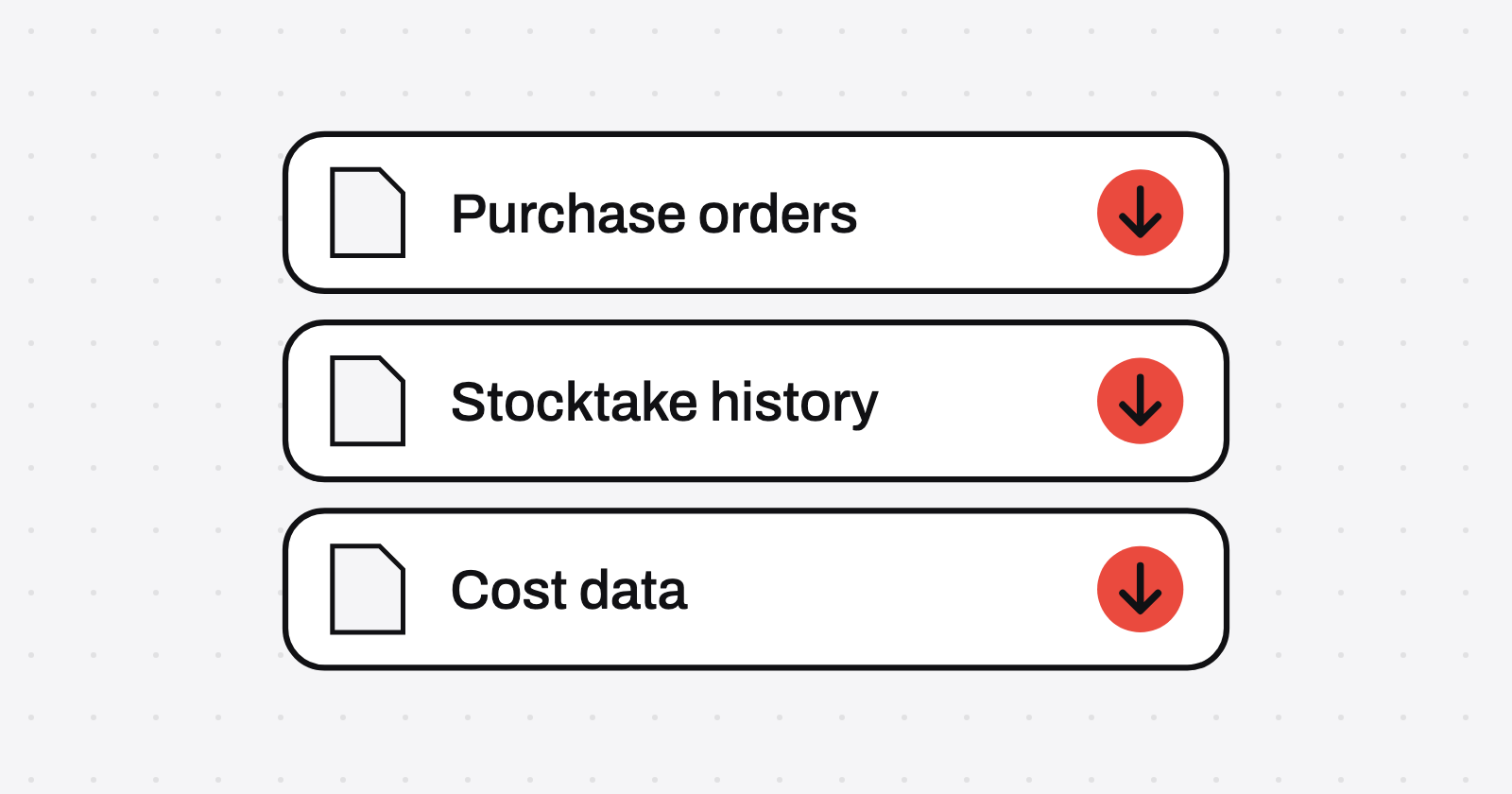
Shopify says to export these with Stocky's reports:
- All completed purchase order reports, as CSV files
- Your stocktake history
- Your historical cost data
For a single order, Shopify's Stocky help gives this route: Apps > Stocky, Purchases, click the PO number, Download, then CSV.
What won't move across
Nothing moves across by itself. These files are records to keep, not something to load back in.
- Purchase orders. Historical ones can't be imported into Shopify. A CSV upload only adds line items to a new draft, without past statuses, received quantities or supplier links.
- Suppliers. These can't be exported from Stocky, so copy any details you need by hand.
- Custom fields. Shopify points to metafields on transfers for keeping those workflows. It doesn't say your old values carry over, so copy those too.
We don't have a read-only Stocky account, so we can't say how these menus look now. If a report is missing, ask Shopify Support while the window is open.
Sources
All checked 1 November 2026. Shopify's screens can change, so go by your admin if it differs.
- Shopify: migrating from Stocky to Shopify inventory management
- Shopify: the Retail Barcode Labels app
- Shopify: receiving inventory from a purchase order
- Shopify: creating a transfer from a purchase order
- Shopify: receiving inventory on a transfer
- Shopify: purchase orders in Stocky
- Shopify Community: a CSV for received stock items
- Shopify App Store: FlochLabels listing
- Shopify App Store: LabelRun listing
How we made this: drafted with AI from the sources linked in this post, then checked by the Woge team before publishing. We haven't run these steps in a live store.